

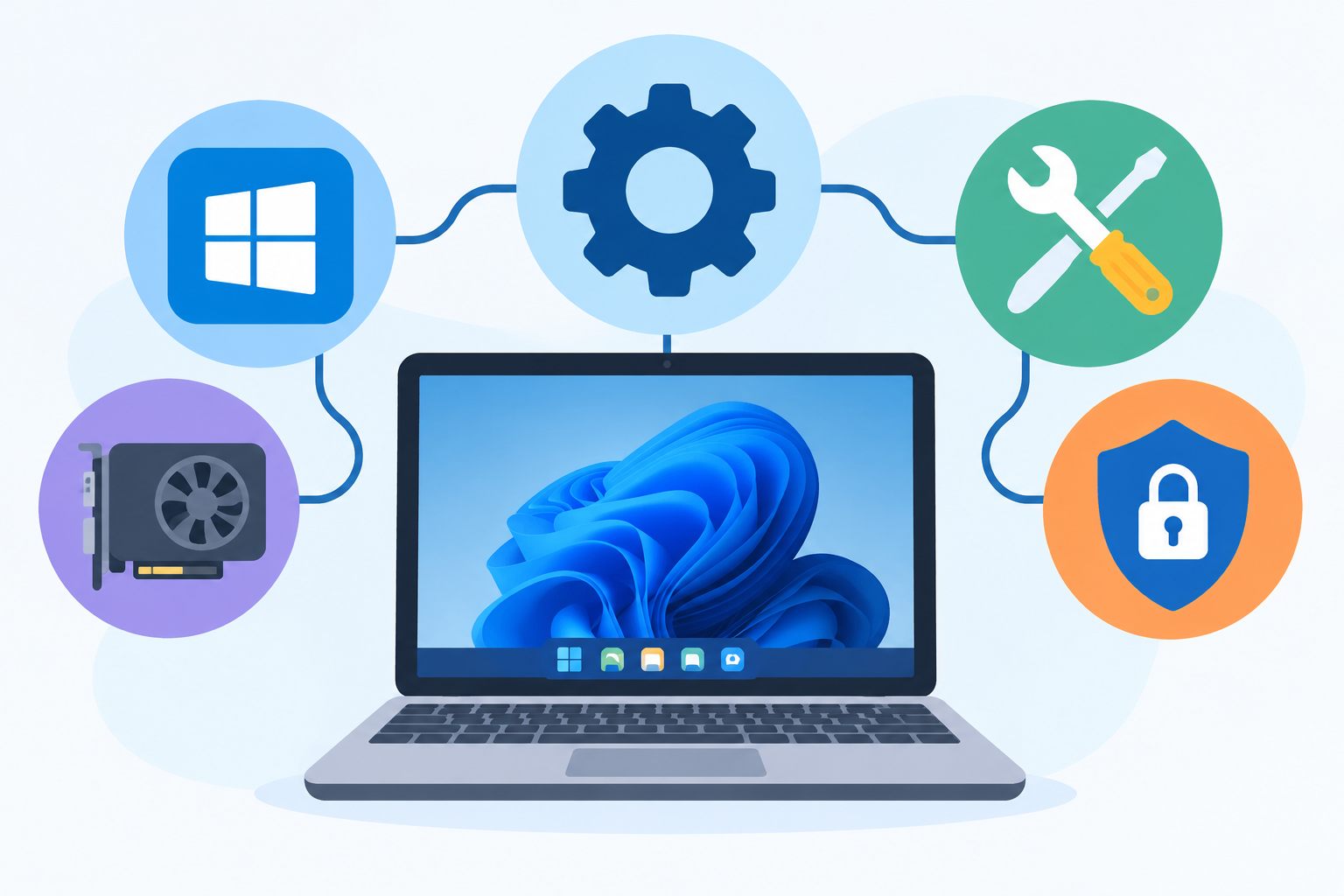
Press the power button on your laptop. Within seconds, a screen lights up, a logo appears, and a desktop loads.
Nobody opened an app. Nobody clicked anything. Yet something clearly took charge and got the whole machine ready.
That “something” is system software. It’s the quiet engine room of every digital device you own.
System software is the background software that controls the hardware directly and allows other programs to run smoothly. It’s one of the primary pillars of the broader computer software ecosystem, which we explored in our main guide on what is software. Think of that guide as the map of the whole city. This article zooms into the plumbing, wiring, and power grid beneath it.
Whether you’re a student, a curious beginner, or someone who just wants to understand what’s happening inside your phone, you’re in the right place. We’ll keep it simple, use real analogies, and skip the jargon walls.
Ready? Let’s pop the hood.
System Software At a Glance
| Detail | Info |
|---|---|
| Term | System Software |
| Core Purpose | Hardware Management & Platform Execution |
| Primary Types | Operating Systems, Device Drivers, Firmware, Utility Programs |
| Famous Examples | Windows, macOS, Linux, Android, iOS, BIOS/UEFI, NVIDIA drivers |
| User Interaction | Mostly invisible, runs in the background |
| Best For | Students, tech beginners, and everyday users |
| Reading Time | About 8 minutes |
What Is System Software?
Picture a busy restaurant.
Customers sit at tables and order food. That’s the part you see. But behind the kitchen doors, chefs cook, dishwashers scrub, and a manager keeps everything on schedule.
System software is the kitchen and the manager. Application software is the menu and the meal.
You don’t see the kitchen. But without it, nobody eats.
System software does three big jobs:
- Manages hardware. It controls the processor, memory, storage, and connected devices.
- Provides a platform. It gives other programs a stable place to run.
- Keeps things running. It handles security, updates, and maintenance.
It starts when you switch on your device. It stays active until you shut down. And it works so smoothly that most people never notice it.
For a verified definition and some history behind these core computing systems, the Encyclopaedia Britannica Operating System Definition is an authoritative place to read more.
The Four Crucial Types of System Software
System software isn’t one single program. It’s a team. Each member has a specific role.
1. Operating Systems: The Master Controller
The operating system (OS) is the boss. It manages every resource on your device and decides which program gets what.
Here’s what an OS handles:
- Memory. It gives each program its own space to work in.
- Processing. It decides which task runs, and for how long.
- Files. It organizes your documents, photos, and folders.
- Security. It controls who can access what.
- User interface. It gives you the desktop, icons, and menus.
Think of the OS as an air traffic controller. Dozens of planes (programs) want to land at once. The controller keeps them from colliding.
Famous operating systems:
| Operating System | Used On | Known For |
|---|---|---|
| Windows | PCs and laptops | Wide software and hardware support |
| macOS | Apple computers | Smooth design and tight Apple integration |
| Linux | Servers, developers, PCs | Open source and highly customizable |
| Android | Most smartphones and tablets | Flexibility and huge app library |
| iOS | iPhones | Simplicity and strong privacy controls |
Want a student-friendly walkthrough of how operating systems manage background processing? The GCSE Bitesize Operating Systems Guide explains it clearly.
2. Device Drivers: The Translators
Your computer speaks one language. Your printer speaks another. They can’t chat without help.
Enter the device driver. It’s a small program that translates instructions between the operating system and a piece of hardware.
Imagine two people at a meeting. One speaks English. The other speaks Japanese. A translator sits between them so both understand. That’s a driver.
Common examples:
- Graphics drivers (like NVIDIA and AMD drivers) help your screen display games and video.
- Printer drivers let your computer send documents to a printer.
- Network adapter drivers connect you to Wi-Fi or Ethernet.
- Audio drivers make your speakers and headphones work.
- Keyboard and mouse drivers turn your clicks and keystrokes into actions.
Real-life tip: If a new printer refuses to print, a missing or outdated driver is a top suspect.
3. Firmware: The Permanent Code
Firmware is software stored permanently inside a hardware chip. It’s the first code that runs when you power on.
Think of it as the reflex built into your body. You don’t decide to blink. It just happens. Firmware works the same way. It’s baked in and ready.
The best-known example is BIOS (Basic Input/Output System). Newer computers use its modern successor, UEFI (Unified Extensible Firmware Interface).
Here’s what happens when you press the power button:
- Firmware wakes up and checks that key hardware is working.
- It finds the operating system on your storage drive.
- It hands control to the OS.
- The OS loads and shows your desktop.
That whole sequence is called booting.
Other firmware examples:
- The code inside your Wi-Fi router
- The software in your smart TV
- The programming in a washing machine or microwave
- The controls inside a digital camera
Firmware can sometimes be updated. But it lives close to the hardware, so updates should be done carefully.
4. Utility Programs: The Maintenance Crew
Utility programs keep your system healthy, safe, and tidy. They don’t do your everyday tasks. They make sure your device can.
Imagine a building. The residents live their lives. Meanwhile, a maintenance crew fixes pipes, sweeps floors, and checks the alarms. Utilities are that crew.
Common utility tools:
- Antivirus software like Windows Defender and Malwarebytes blocks and removes threats.
- Disk cleanup tools clear out temporary and junk files.
- Disk defragmenters rearrange scattered data on traditional hard drives so files load faster.
- Backup software like Time Machine and File History saves copies of your data.
- File compression tools like WinRAR and 7-Zip shrink files for storage and sharing.
- Task managers show what’s running and let you close frozen programs.
- Firewalls control which data enters and leaves your network.
Quick note: Modern solid-state drives (SSDs) don’t need traditional defragmenting. Your OS handles their upkeep automatically.
How System Software Differs from Application Software
Both are essential. But they play different roles.
System software manages the internal hardware operations. Application software helps users perform specific tasks.
Here’s the side-by-side view.
| Feature | System Software | Application Software |
|---|---|---|
| Main Job | Manages hardware and runs the platform | Helps users complete specific tasks |
| User Interaction | Mostly behind the scenes | Direct and frequent |
| When It Runs | Starts at boot and stays active | Runs only when you open it |
| Dependency | Works directly with hardware | Needs system software to run |
| Installed How | Usually pre-installed with the device | Installed by the user as needed |
| Programming Level | Low-level, close to the machine | High-level, user-friendly |
| Examples | Windows, Linux, BIOS, antivirus, drivers | Chrome, MS Word, Spotify, WhatsApp |
| Restaurant Analogy | The kitchen and manager | The meal on your plate |
The Layer Cake View
Picture your device as a layer cake.
- Bottom layer: Hardware. The physical parts.
- Middle layer: System software. It controls the hardware and creates a platform.
- Top layer: Application software. The tools you use directly.
Each layer depends on the one below it. Remove the middle layer, and the top has nothing to stand on.
Where Productivity Tools Fit In
Here’s a practical example. When you type an essay in a word processor, the app doesn’t talk to your keyboard or save files to the drive by itself. The operating system and drivers do the heavy lifting underneath.
That’s why specialized tools like office suites sit on top of system software. They let people finish daily work without worrying about the hardware beneath. If you want to see what those tools look like, check out our guide on what is productivity software, which covers word processors, spreadsheets, and project management apps.
Why System Software Matters
It’s easy to ignore what you can’t see. But consider what would happen without it.
- No operating system: Your laptop turns on but can’t show anything useful.
- No drivers: Your printer, mouse, or graphics card sits unused.
- No firmware: Your device can’t even begin to start up.
- No utilities: Your system slowly fills with junk and becomes vulnerable to threats.
System software is the reason all those pieces cooperate.
Tips for Keeping Your System Software Healthy
A little care goes a long way.
- Install updates promptly. They fix bugs and patch security holes.
- Update drivers when needed. Get them from the hardware maker’s official website.
- Run antivirus scans. Make it a regular habit.
- Back up your files. Don’t wait for a crash to learn this lesson.
- Free up storage. A nearly full drive slows everything down.
- Be careful with firmware updates. Don’t turn off your device mid-update.
- Avoid unknown downloads. Stick with trusted sources.
Common Myths About System Software
Myth: “System software and the operating system are the same thing.”
Not quite. The OS is the biggest part. But drivers, firmware, and utilities also count.
Myth: “Only computers have system software.”
Phones, smart TVs, game consoles, and even modern cars rely on it.
Myth: “I never touch system software.”
You use it every second. You just don’t see it.
Final Thoughts
System software is the backbone of every digital device. It runs quietly, keeps hardware in line, and gives your apps a stable home.
Remember the essentials:
- System software controls hardware and lets other programs run smoothly.
- Operating systems are the master controllers.
- Device drivers translate between hardware and software.
- Firmware is the permanent code that starts your device.
- Utility programs keep everything clean, safe, and backed up.
- Application software sits on top and helps users complete tasks.
The next time you power on your phone or laptop, pause for a moment. A whole team of invisible helpers just woke up, checked the hardware, and prepared everything for you.
All in a few seconds. Pretty remarkable.
📌 Informational Disclaimer
This guide is provided for general educational purposes and technological literacy only. It is not a substitute for professional IT advice, formal training, or technical support. Software names, features, and products mentioned are examples for learning purposes and may change over time. Readers are encouraged to consult official documentation and qualified professionals before making changes to system settings, firmware, or drivers.