

You ask your coworker the same question for the third time this week. A customer emails support asking how to reset a password. A new employee spends half a day hunting for the leave policy.
Sound familiar? All of these problems have one simple fix.
Knowledge base software.
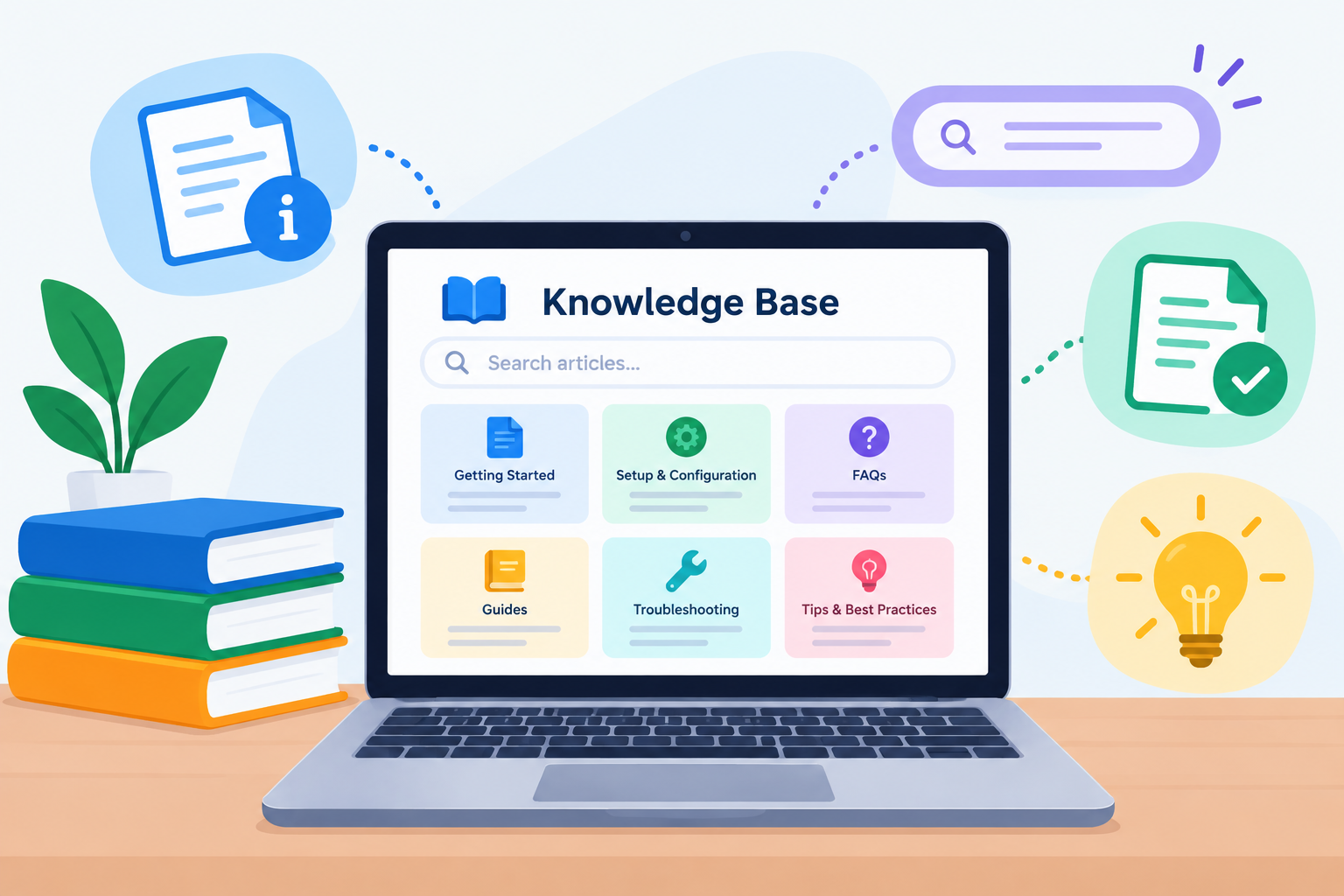
It’s a tool that collects answers, guides, and documents in one searchable place. Instead of asking a person, people just search and find the answer themselves. Fast. Any time of day.
This guide explains what knowledge base software is, how it works, its key features, real uses, popular examples, and how to pick the right one.
Knowledge Base Software At a Glance
| Detail | Information |
|---|---|
| Topic | Knowledge Base Software |
| Also Known As | KB software, help center software, knowledge management tool |
| Main Purpose | Store, organize, and share information in one searchable place |
| Main Types | Internal (for employees) and External (for customers) |
| Common Content | FAQs, how-to guides, tutorials, troubleshooting steps, policies |
| Popular Examples | Confluence, Notion, Zendesk Guide, Document360, ServiceNow |
| Used By | Businesses, support teams, HR, IT departments, schools |
| Key Benefit | Self-service answers that save time and reduce repeated questions |
What Is a Knowledge Base?
Let’s start with the basic idea.
A knowledge base is a central library of information. Think of it as a company’s “answer book.” It holds articles, FAQs, manuals, and step-by-step guides about a product, service, team, or topic.
Atlassian’s guide to knowledge bases describes it as a self-serve online library. Atlassian explains that subject experts usually add and expand the content, which can cover anything from HR and legal topics to how a product works. It also notes that a knowledge base is the foundation of a wider knowledge management practice inside a company.
So, What Is Knowledge Base Software?
Knowledge base software is the application you use to build, manage, and share that library.
It gives you the tools to:
- Write and format articles
- Organize them into categories
- Let users search for answers
- Control who can see or edit content
- Track which articles people actually read
It’s a type of application software, built for one clear job: managing knowledge. If you want the bigger picture of how software categories work, read What Is Software? Types, Examples, and Uses.
How Does Knowledge Base Software Work?
The process is simple. Here’s how it usually flows:
- Create content. Team members write articles, FAQs, and guides using a built-in editor.
- Organize it. Articles are grouped into categories and tagged with keywords.
- Publish it. Content goes live for employees, customers, or both.
- Users search. Someone types a question like “how to change my password.”
- The system finds answers. The search engine shows the most relevant articles.
- Track and improve. Analytics show which articles help and which ones need updates.
Many modern tools now use AI to understand questions better. So the search returns helpful answers, not just exact keyword matches.
Types of Knowledge Bases
Knowledge bases come in two main types. Each serves a different audience.
1. Internal Knowledge Base
This one is just for employees. It’s private.
Common content:
- Onboarding guides for new hires
- HR and leave policies
- IT setup and troubleshooting steps
- Company processes and templates
- Writing or coding guidelines
2. External Knowledge Base
This one is for customers and partners. It’s often public.
Common content:
- FAQs
- Product guides and tutorials
- Troubleshooting help
- Billing and shipping information
- Account settings instructions
You’ve probably used external knowledge bases many times. Every time you visit a “Help Center” on a company website, that’s one.
| Feature | Internal KB | External KB |
|---|---|---|
| Audience | Employees | Customers, partners |
| Access | Private, login required | Usually public |
| Main Goal | Boost team productivity | Improve customer self-service |
| Example Content | HR policies, IT guides | FAQs, product tutorials |
Key Features of Knowledge Base Software
Not all tools are the same. But the good ones share these core features.
Powerful Search
This is the heart of any knowledge base. Users should find answers in seconds. Look for features like auto-suggestions, typo tolerance, and AI-powered search.
Easy Content Editor
Writers need a simple editor. Drag-and-drop, formatting tools, image uploads, and video embeds make creating articles quick.
Categories and Tags
Content needs structure. Categories and tags help organize hundreds of articles so users can browse logically.
Templates
Ready-made layouts for FAQs, how-to guides, and troubleshooting pages keep every article consistent.
User Permissions
You control who can view, edit, or publish. Internal content stays private. Public content stays clean.
Analytics and Reports
See what people search for, which articles get the most views, and where users can’t find answers. This shows you exactly what to write next.
Version History
Track every change. If someone makes a mistake, you can roll back to an older version.
Feedback and Ratings
“Was this article helpful? Yes / No.” Simple buttons like this tell you which content works.
Integrations
Good tools connect with help desks, chat apps, CRMs, and project management tools. Answers show up right where people work.
Mobile-Friendly Design
Users should read articles easily on phones and tablets.
Multi-Language Support
Global companies need content in several languages. Some tools also adjust content based on a user’s location.
Main Uses of Knowledge Base Software
Here’s where these tools really shine.
Customer Support
Customers find answers on their own. No waiting on hold. Support teams get fewer repeated tickets and more time for complex problems.
Employee Onboarding
New hires learn the basics from guides instead of asking the same questions. Training gets faster and more consistent.
IT Help Desk
Employees fix common issues themselves, like connecting to Wi-Fi or resetting passwords.
HR Management
Leave policies, benefits, payroll schedules, and company rules all live in one place.
Product Documentation
Software companies use KBs for user manuals, setup guides, and feature explanations.
Education and Training
Schools and online courses use them to share study material, guides, and FAQs with students.
Team Collaboration
Teams record meeting notes, project details, and best practices so knowledge isn’t lost when someone leaves.
TechTarget’s knowledge base definition highlights several of these benefits. It explains that a well-organized knowledge base cuts the time employees spend hunting for information, lets customers solve problems without contacting staff, and can even improve a company’s SEO by bringing in new visitors through helpful online content. TechTarget also gives a practical example: ride-share services keep separate knowledge bases for riders and drivers, so each group gets quick answers in a simple format.
Popular Knowledge Base Software Examples
Here are some well-known tools used around the world:
| Tool | Best For | Key Strength |
|---|---|---|
| Atlassian Confluence | Internal team documentation | Works closely with Jira |
| Notion | Small teams and personal wikis | Flexible pages, tasks, and boards |
| Zendesk Guide | Customer support help centers | Built into Zendesk’s ticketing system |
| Document360 | Internal and external KBs | Strong analytics and localization |
| ServiceNow | Large enterprises and IT service | Workflow and task management |
| Helpjuice | Customer-facing help centers | Customizable design |
| Freshdesk | Small to mid-sized support teams | Help desk plus knowledge base |
Some of these, like Notion, overlap with everyday work tools for notes and task planning. To explore that category further, read What Is Productivity Software? Types and Examples.
Benefits of Using Knowledge Base Software
- 24/7 help: Answers are available any time, even when support teams are offline.
- Fewer repeated questions: Teams stop answering the same thing over and over.
- Faster problem-solving: Users find answers in seconds.
- Lower costs: Less support staff time and cheaper training.
- Consistent information: Everyone reads the same correct answer.
- Saved knowledge: Important know-how stays even when employees leave.
- Happier customers: People like solving problems themselves quickly.
- Better SEO: Public help articles can rank on Google and bring new visitors.
Challenges to Keep in Mind
Knowledge bases aren’t magic. They need care.
- Outdated content: Old articles can confuse users. Regular reviews are a must.
- Poor organization: If users can’t find articles, the KB fails.
- Setup time: Writing the first batch of articles takes real effort.
- Cost: Advanced tools often charge per user each month.
- Low adoption: Teams need encouragement to actually use and update it.
Cloud vs On-Premise Knowledge Base Software
You can usually run a knowledge base in two ways.
- Cloud-based (SaaS): Hosted online by the provider. Quick to set up, accessible anywhere, with updates handled for you. Most modern tools work this way.
- On-premise: Installed on a company’s own servers. More control over data and security, but needs IT staff to maintain it, including the operating system and server software underneath.
Curious about the background programs that keep servers and computers running? See What Is System Software? Types and Examples.
How to Choose the Right Knowledge Base Software
Ask yourself these questions before picking a tool:
- Who is it for? Employees, customers, or both?
- How big is your team? Some tools suit startups. Others are built for large enterprises.
- Is the search good? Test it with real questions.
- Is it easy to write in? If writing feels hard, nobody will add content.
- Does it connect with your current tools? Check help desk, chat, and CRM integrations.
- Does it show analytics? You need data to improve content.
- What’s the budget? Compare free plans, per-user pricing, and hidden costs.
- Is it secure? Check permissions, login options, and data protection.
Tip: Most tools offer a free trial. Test two or three before committing.
Quick Recap
- A knowledge base is a central library of answers and guides.
- Knowledge base software is the tool used to build, organize, and share it.
- There are two main types: internal (employees) and external (customers).
- Key features include search, editor, categories, permissions, analytics, and integrations.
- Main uses include customer support, onboarding, IT help, HR, and documentation.
- Popular tools include Confluence, Notion, Zendesk Guide, Document360, and ServiceNow.
Final Thoughts
Every team has knowledge. The real question is whether people can find it when they need it.
Knowledge base software turns scattered emails, chats, and documents into one clear, searchable home. Customers get faster answers. Employees work smarter. And your company stops answering the same question a hundred times.
Start small. Write your top ten most-asked questions. Build from there. Before long, you’ll wonder how you ever worked without one.
Disclaimer
This article is for general informational and educational purposes only. Software names, features, pricing, and availability mentioned here may change over time. Brand names are used only as examples and do not imply endorsement. Always review a provider’s official website, terms, and privacy policy before choosing any software for personal or business use.