

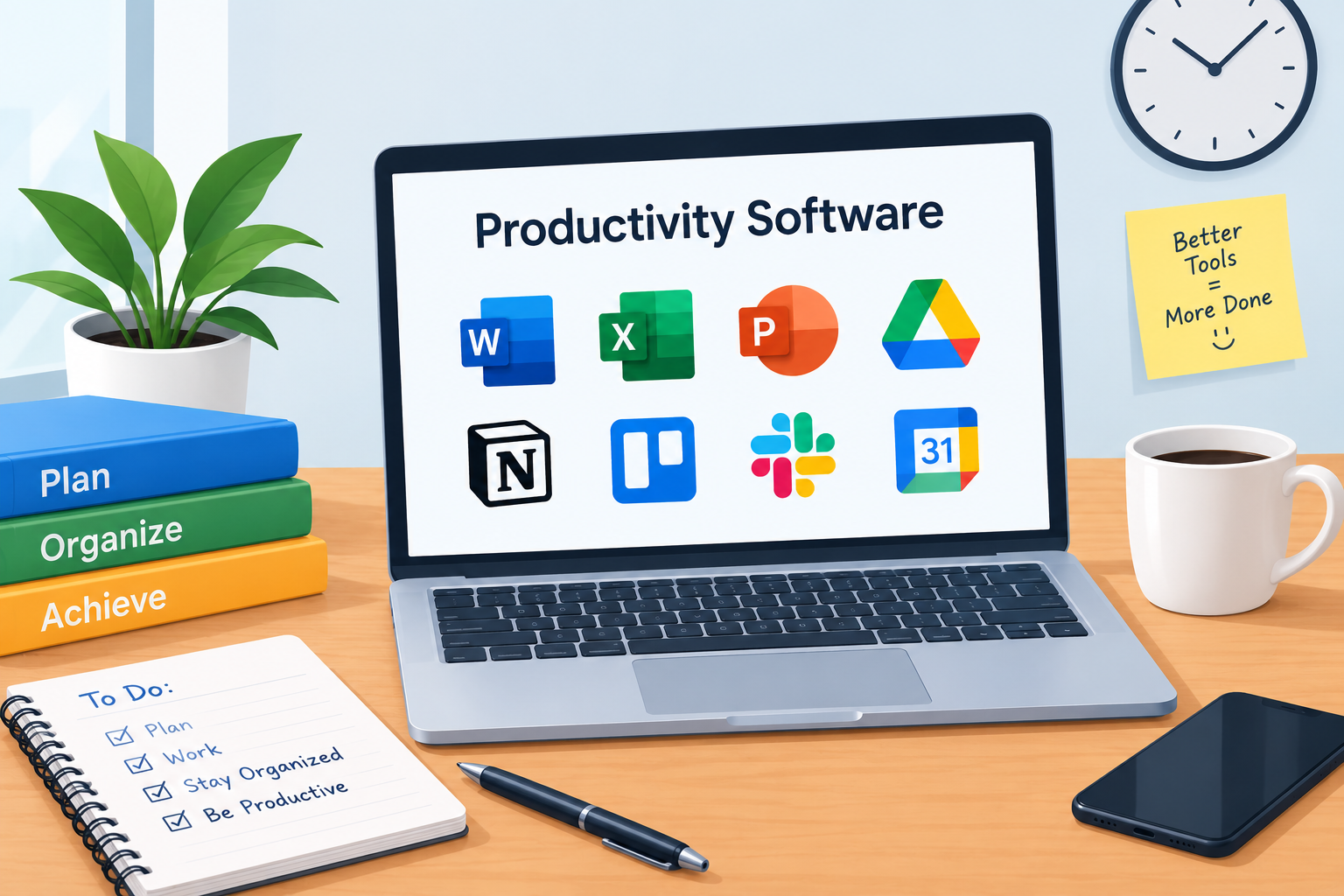
Your to-do list lives in six places. Your notes are scattered across sticky pads, texts, and random documents. Your calendar is a guessing game.
Sound familiar?
That’s exactly the mess productivity software was built to clean up. These tools help you write faster, plan better, and finish more, without burning out.
Whether you’re a student juggling assignments, a professional drowning in meetings, or a small business owner wearing ten hats, this guide is for you. We’ll cover what productivity software is, the main types, real examples, and how to pick the right tools.
No tech jargon. No fluff. Just practical help.
Productivity Software At a Glance
| Detail | Info |
|---|---|
| Term | Productivity Software |
| Primary Goal | Efficiency & Task Management |
| Core Features | Collaboration, Document Creation, Scheduling, Data Organization |
| Famous Examples | Microsoft Word, Google Docs, Excel, PowerPoint, Trello, Asana, Notion, Google Calendar |
| Works On | Computers, tablets, smartphones, and web browsers |
| Best For | Students, professionals, and small business owners |
| Reading Time | About 8 minutes |
What Is Productivity Software?
Productivity software is application software designed to make daily tasks faster, more organized, and more efficient.
That’s the whole idea. It helps you do your work with less effort and less chaos.
Think of it as a digital toolbox. You open the right tool for the job. Writing a report? Grab a word processor. Tracking expenses? Open a spreadsheet. Planning a team project? Use a project board.
Productivity apps are a specialized category of application software. They sit on top of the foundation we covered in our main guide on what is software, where we explained how system software runs your device and application software helps you complete tasks. Productivity tools are the part of that second family built specifically to help you get more done.
Why It Matters
Time is limited. Attention is even more limited.
Good productivity software saves both. It cuts repetitive work, keeps information in one place, and lets people work together without endless email chains.
Main Types of Productivity Software
Productivity tools come in several flavors. Each one solves a different problem. Let’s walk through them.
1. Word Processors
A word processor helps you create, edit, and format written documents. Think essays, reports, letters, resumes, and proposals.
Popular examples:
- Microsoft Word is the long-time industry standard.
- Google Docs runs in your browser and saves automatically.
- Apple Pages comes free on Apple devices.
- LibreOffice Writer is a free, open-source option.
What they do well:
- Spell and grammar checking
- Formatting with fonts, headings, and tables
- Templates for resumes and reports
- Comments and tracked changes for feedback
- Easy export to PDF
Pro tip: Learn the keyboard shortcuts. Ctrl+C, Ctrl+V, and Ctrl+Z alone can save you hours over a month.
2. Spreadsheets and Data Management
A spreadsheet organizes information in rows and columns. It also does calculations for you.
Popular examples:
- Microsoft Excel is powerful, deep, and widely used in business.
- Google Sheets is cloud-based and great for shared data.
- Apple Numbers offers a clean, visual approach.
What they do well:
- Budgeting and expense tracking
- Automatic calculations with formulas
- Charts and graphs
- Sorting and filtering large lists
- Basic data analysis
Say you run a small bakery. A simple spreadsheet can track daily sales, ingredient costs, and profit. One formula adds up your totals. No calculator needed.
3. Presentation Software
Presentation software helps you turn ideas into slides. It’s built for pitches, lessons, and meetings.
Popular examples:
- Microsoft PowerPoint is the best-known option.
- Apple Keynote is loved for smooth animations.
- Google Slides is easy to share and edit together.
- Canva offers eye-catching design templates.
What they do well:
- Slide layouts and themes
- Images, charts, and video
- Speaker notes
- Transitions and animations
- Presenting live or sharing online
Pro tip: Keep slides simple. One idea per slide. Your audience should listen to you, not read a wall of text.
4. Project Management and Collaboration Tools
These tools keep teams organized. They show who is doing what, and by when.
Popular examples:
- Trello uses simple boards and cards. It’s perfect for beginners.
- Asana tracks tasks, deadlines, and team workloads.
- Notion combines notes, databases, and wikis in one workspace.
- Slack and Microsoft Teams handle team chat and quick calls.
- Monday.com offers flexible, visual project tracking.
What they do well:
- Assigning tasks and deadlines
- Showing progress at a glance
- Sharing files in one place
- Cutting down on endless email threads
- Keeping everyone on the same page
Picture a student group project. Instead of five people texting back and forth, they set up one Trello board. Each person owns a card. Everyone sees what’s done and what’s left.
5. Time Management and Scheduling Software
These tools protect your most valuable resource: your time.
Popular examples:
- Google Calendar is simple, shareable, and syncs everywhere.
- Microsoft Outlook Calendar pairs scheduling with email.
- Calendly lets others book meetings without back-and-forth.
- Todoist and Microsoft To Do manage daily task lists.
- Toggl Track records how you spend your hours.
What they do well:
- Reminders and alerts
- Recurring events
- Shared calendars
- Time blocking
- Meeting scheduling across time zones
Quick Comparison of Productivity Software Categories
| Category | Main Purpose | Popular Examples | Best For |
|---|---|---|---|
| Word Processors | Writing and formatting documents | Word, Google Docs | Essays, reports, letters |
| Spreadsheets | Organizing and calculating data | Excel, Google Sheets | Budgets, tracking, analysis |
| Presentation Tools | Creating slides | PowerPoint, Keynote | Pitches, lessons, meetings |
| Project Management | Planning and teamwork | Trello, Asana, Notion | Group projects, team workflows |
| Time Management | Scheduling and reminders | Google Calendar, Todoist | Daily planning, deadlines |
Productivity Suites: All-in-One Packages
Many companies bundle several tools together. These bundles are called productivity suites. You get a word processor, spreadsheet, presentation tool, email, and storage in one package.
Two giants dominate this space.
Microsoft 365
Microsoft 365 includes Word, Excel, PowerPoint, Outlook, Teams, and OneDrive cloud storage. It’s a favorite in offices, schools, and large organizations. If you want to explore tutorials, templates, and training, the Microsoft 365 Official Resource Center is a reliable place to start.
Google Workspace
Google Workspace offers Docs, Sheets, Slides, Gmail, Meet, Drive, and Calendar. Everything runs in the browser, and real-time collaboration is its superpower. The Google Workspace Learning Center is a great authority reference for cloud-based collaboration, document sharing, and getting the most from these tools.
Suite Comparison
| Feature | Microsoft 365 | Google Workspace |
|---|---|---|
| Word Processor | Word | Docs |
| Spreadsheet | Excel | Sheets |
| Presentations | PowerPoint | Slides |
| Outlook | Gmail | |
| Team Chat / Video | Teams | Meet / Chat |
| Cloud Storage | OneDrive | Drive |
| Strength | Advanced features, offline power | Real-time teamwork, simplicity |
| Best For | Larger organizations, detailed work | Schools, startups, remote teams |
Neither is “better.” It depends on how you work.
Benefits of Using Productivity Software
Now the big question. Why bother?
In Education
- Better notes. Apps like Notion and OneNote keep everything searchable.
- Cleaner assignments. Word processors catch spelling errors before teachers do.
- Smarter group work. Shared documents mean no more “I’ll email you my part.”
- Deadline control. Calendars and task lists prevent last-minute panic.
- Digital skills. Students who master these tools are ready for real jobs.
In Remote Work
- Teamwork from anywhere. Cloud tools let teams edit the same file at once.
- Clear accountability. Everyone sees who owns each task.
- Fewer meetings. A good project board answers many questions without a call.
- Easy file access. Documents live online, not on one person’s laptop.
- Time zone help. Scheduling tools find meeting times that work for everyone.
In Personal Planning
- Budgeting. Spreadsheets track spending and savings goals.
- Daily routines. Task apps keep habits and errands on track.
- Event planning. Shared calendars simplify family schedules.
- Goal tracking. Notes and checklists turn big dreams into small steps.
- Less mental clutter. Write it down, and your brain can relax.
How to Choose the Right Productivity Software
Don’t download everything. Too many tools create new chaos.
Ask yourself these questions:
- What problem am I solving? Start with the pain point.
- Do I work alone or with a team? Collaboration needs change your choices.
- What’s my budget? Many excellent tools have free plans.
- Does it work on all my devices? Syncing matters.
- Is it easy to learn? If it takes a week to figure out, you’ll likely quit.
A simple starter stack:
- One word processor
- One spreadsheet tool
- One calendar
- One task or project app
That’s enough for most people.
Common Mistakes to Avoid
- Using too many apps. Pick a few and stick with them.
- Skipping the learning curve. Spend 30 minutes on tutorials. It pays off fast.
- Ignoring backups. Use cloud storage so nothing gets lost.
- Forgetting security. Use strong passwords and two-step verification.
- Chasing perfect setups. Tools should help you work, not become the work.
Final Thoughts
Productivity software won’t do the work for you. But it clears the clutter so you can focus on what matters.
Remember the essentials:
- Productivity software is application software built to save time and boost organization.
- The main types include word processors, spreadsheets, presentation tools, project management platforms, and scheduling apps.
- Microsoft 365 and Google Workspace bundle these tools into complete suites.
- The real benefits show up in school, remote work, and everyday life.
Start small. Pick one tool that fixes your biggest headache this week. Learn it well. Then add another.
Before long, that scattered pile of notes and reminders will turn into a calm, organized system. And you’ll wonder how you ever managed without it.
📌 Informational Disclaimer
This guide is provided for general educational purposes and software literacy only. It is not a substitute for professional IT advice, formal training, or technical support. Software names, features, pricing, and availability are mentioned as examples for learning purposes and may change over time. Readers are encouraged to consult official documentation and qualified professionals for specific technical, security, or business needs.